
Creating content
Blueprints
Blueprints are reusable snippets of content that let L&D teams build custom learning experiences at scale.
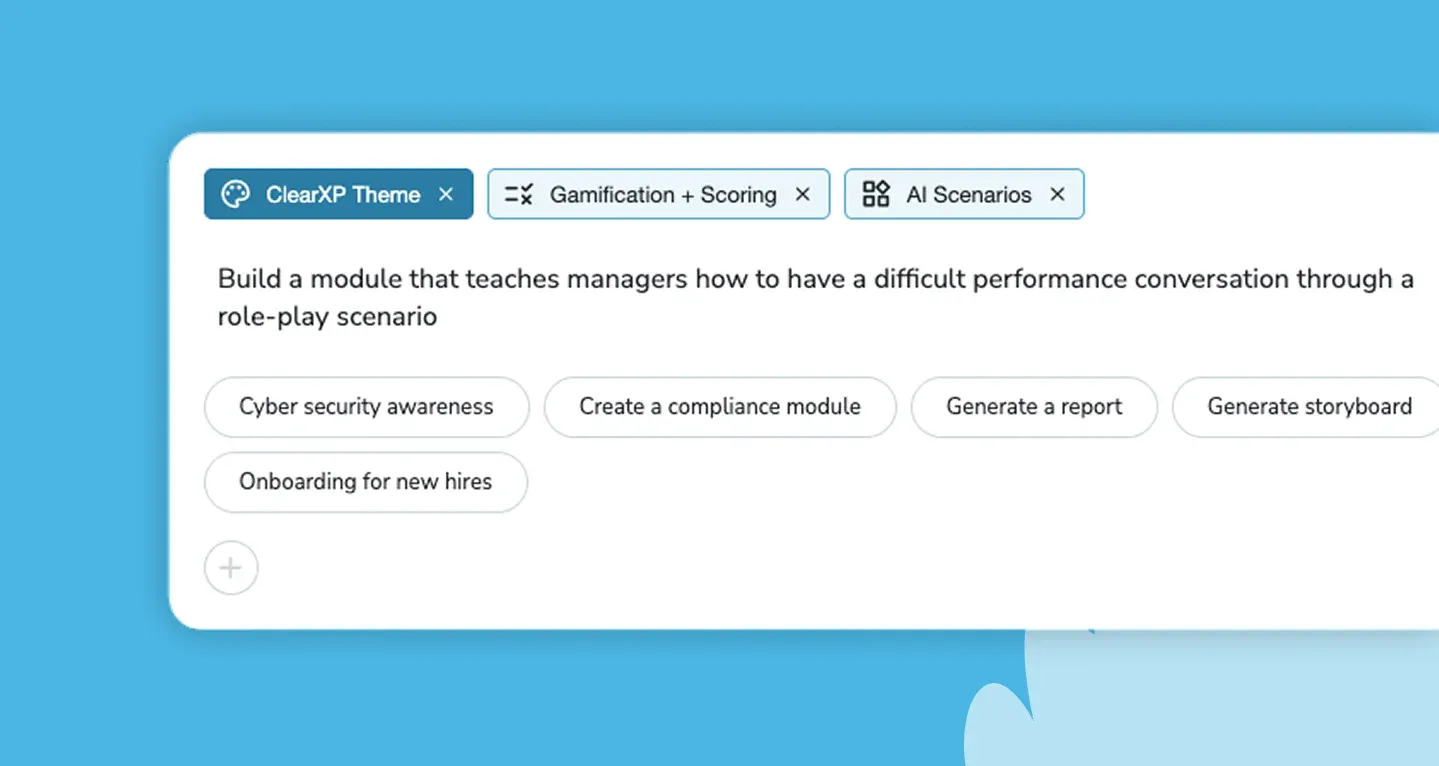
A blueprint is a snippet of content that can be reused across multiple learning modules.
Reproducibility becomes a problem when you can build literally any learning experience imaginable. You might spend hours or days crafting the perfect gamified simulation and then be asked to repeat it for a different system. With blueprints, you don’t need to start from scratch.
A blueprint can represent:
- A single component
- A visual design or layout
- Rules or guardrails
- Any combination of the above
Create a blueprint
Section titled “Create a blueprint”You can extract a blueprint from an existing module, or start a new conversation and ask Clare to build a blueprint from scratch.
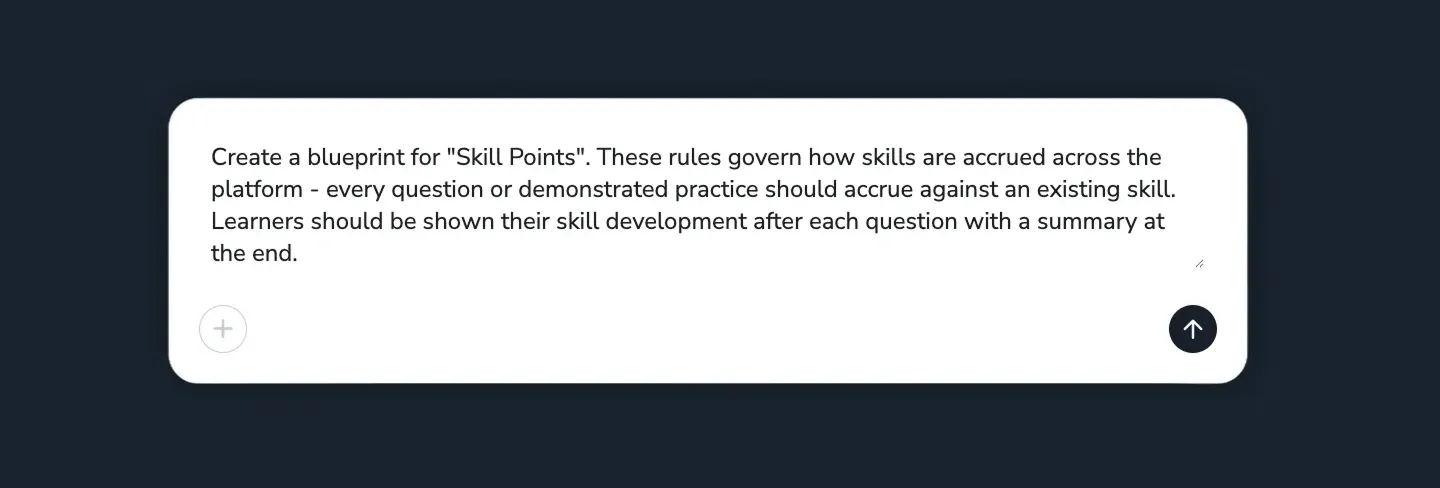
Clare pulls out the relevant assets, code and logic into a snippet that can be imported into another module. You don’t need to worry about module-specific content or text. Clare is smart enough to extract just the reusable parts.
Clare will summarise what she’s done and publish the blueprint to the organisation so other users can use it as well.
Here are some example prompts for creating blueprints:
- Turn the hero banner in this module into a blueprint.
- Make a blueprint from the attached brand guide.
- Save the scoring rules from this game as a blueprint.
These examples are trivial, but you’ll get more use out of blueprints if you include more detail and context, for example:
Turn the hero banner into a “Hero with Progress” blueprint. The heading should use the module name and the subheading should show the current screen. Use it when we have a screen-by-screen linear module and the author wants to show ongoing progress.
Clare embeds these rules into the blueprint so it’s always applied the same way. When to use information helps Clare suggest the blueprint automatically when future modules are created.
Use a blueprint
Section titled “Use a blueprint”There are three different ways blueprints can be used:
- Clare finds and suggests blueprints that match the prompt as you type it.
- You can manually add a blueprint by clicking the plus icon and selecting one.
- Clare also finds and uses relevant blueprints while building content.
You can also ask Clare to use a blueprint by name, but this will likely result in the blueprint auto-suggestion appearing.
Manually use a blueprint
Section titled “Manually use a blueprint”You can manually include blueprints from the prompt box.
- Click the plus icon below the prompt.
- Click Blueprints or Style guides.
- Find and click the blueprint you want to use.
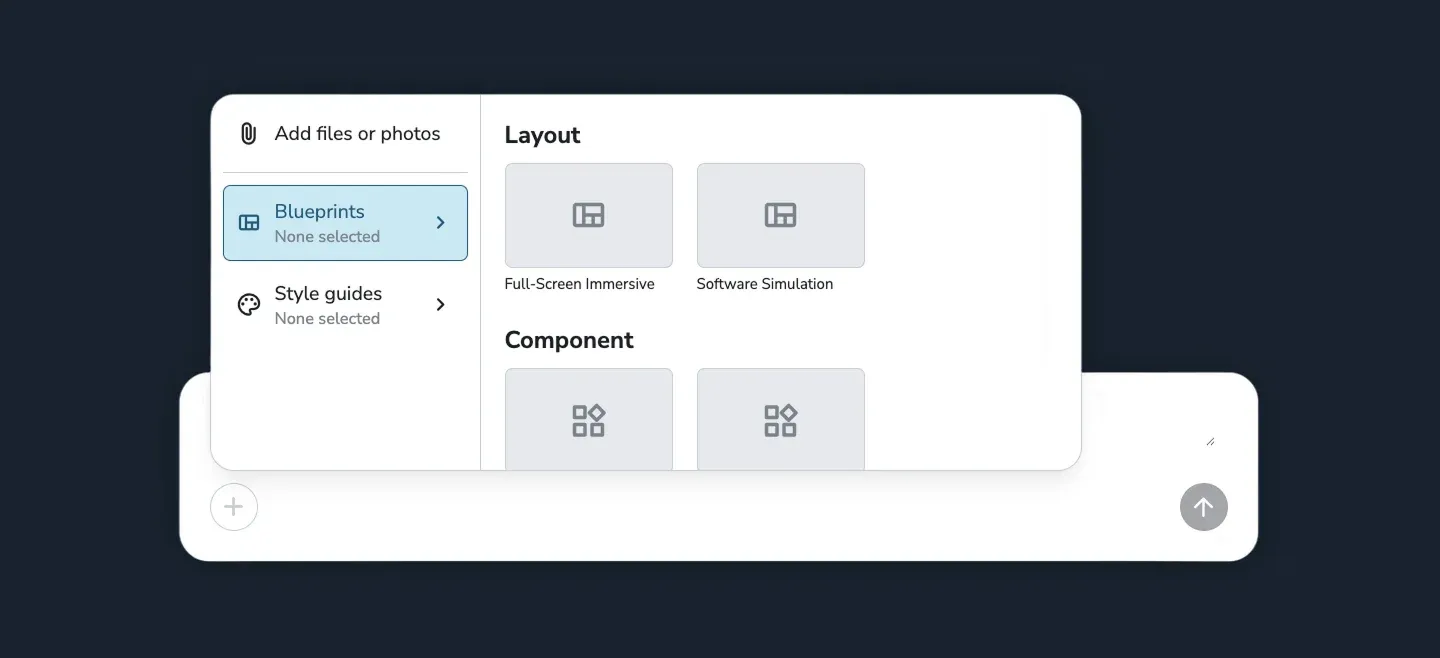
Blueprints are grouped by type (Layout, Component or Behaviour), and selected blueprints appear as chips above your prompt. To remove a blueprint, click its x icon.
Blueprint auto-suggestions
Section titled “Blueprint auto-suggestions”You don’t need to know what blueprints exist when building content. As you type your prompt, blueprints will be suggested and appear as chips above the prompt input.
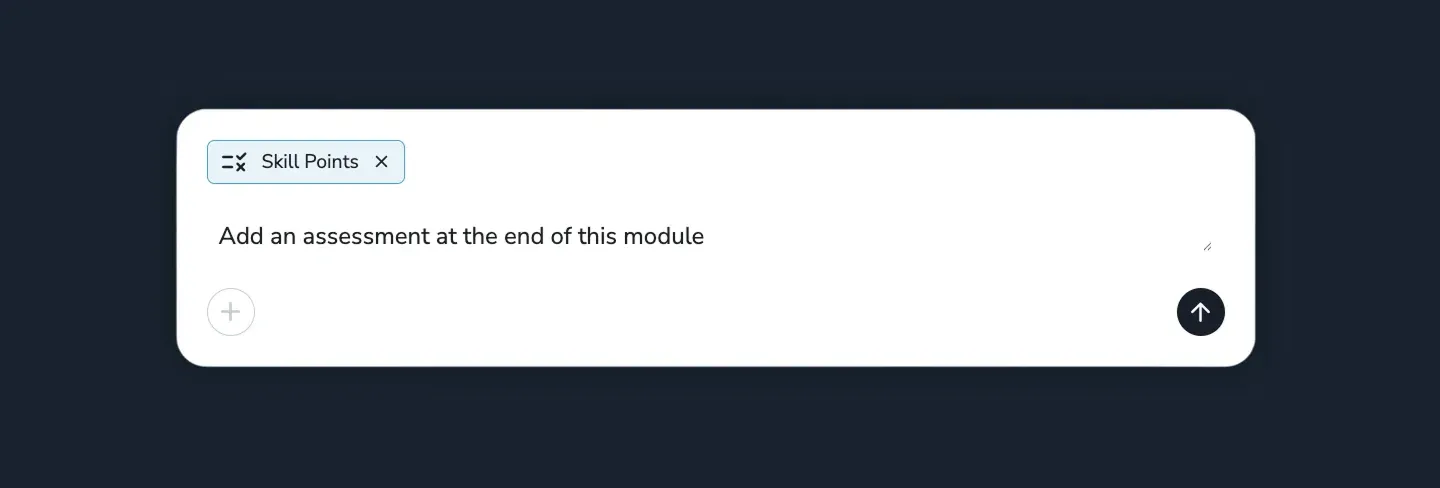
Suggested blueprints appear with an outline.
- Click the blueprint to confirm it. The blueprint turns solid and will be used during the build.
- Click the x icon to dismiss the blueprint. Dismissed blueprints are never used when creating content.
If you don’t confirm or dismiss the blueprint, it will remain as a suggestion and Clare will consider using it when building out content.
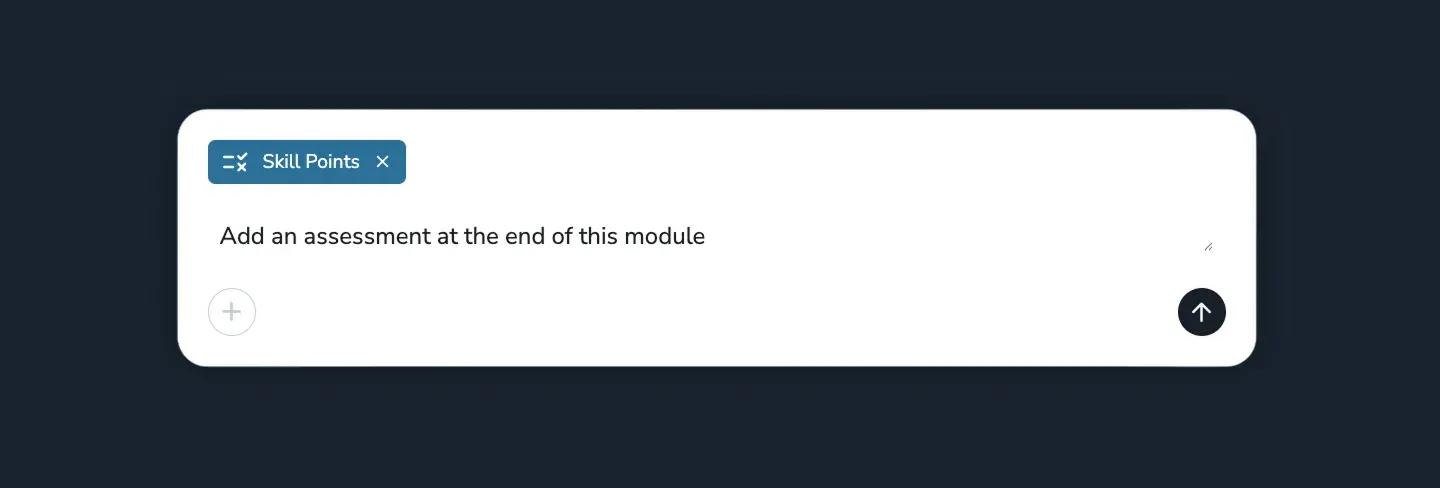
Dismissed blueprints are never suggested again in the same prompt. If you want to bring back a dismissed blueprint, you can add it manually or delete your prompt and type it again.
Update a blueprint
Section titled “Update a blueprint”You can update an existing blueprint in a number of ways:
- Ask Clare to update a blueprint from the conversation that created it.
- If content has changed a blueprint since it was used, ask Clare to publish those changes.
- Start a new conversation and ask Clare to make changes to a blueprint.
Blueprints are versioned and changes to a blueprint can be applied to any module that uses it. Clare can even automatically apply updates to all modules that use a blueprint.
Don’t worry if content has changed the blueprint from the original. Clare is able to intelligently merge in the updated version without losing any module-specific changes.
Managing and deleting blueprints
Section titled “Managing and deleting blueprints”You can manage blueprints from any conversation:
- Ask Clare to list what blueprints exist in the system.
- Ask Clare what changes have been made to a blueprint.
- Ask Clare to delete a blueprint.
Deleting a blueprint doesn’t change content that uses it. That content keeps its copy of the blueprint, but the deleted blueprint can’t be used for new builds.
Blueprints vs templates
Section titled “Blueprints vs templates”You can think of blueprints as more flexible, adaptable templates.
Traditional authoring tools ensure consistency through templates and a strict set of components. The downside is that designers can only build with the templates and components that already exist.
Blueprints aren’t as rigid as templates. They provide a model for how something should look and work, but they can be adapted when used. You’ll be incredibly surprised at how you can create many variations of a blueprint and seamlessly merge in updates without losing any work.